What Are the Best Ultrawide Monitors for Multitasking?
Twenty years at a desk teaches you that a second monitor solves one problem and creates three. The bezel sits where your eyes want to be. The two panels never match in color. Windows forgets which screen your email was on every time the laptop sleeps. An ultrawide removes all 3 complaints at once, which is why my desk has had one on it since 2019 and why I stopped buying pairs of 27-inch screens.
The catch is that ultrawide has become a category with almost nothing in common inside it. I spent the past few weeks with 5 of them lined up on the same desk, same laptop, same 3 apps open side by side, and the gap between the cheapest and the dearest here is not a matter of polish. One gives you 5,120 pixels across and charges your laptop at 140W. Another gives you 3,440 and a tilt hinge. Both are sold as multitasking monitors, and only one of them changed how my working day felt.
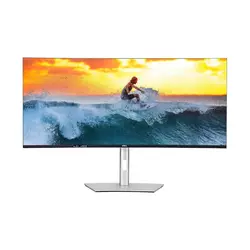
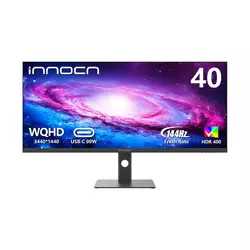
Here are my two top picks for the best ultrawide monitors for multitasking:
We may earn a small commission if you buy via our links - it helps keep gagadget.com running.
Table of Contents:
- How to Choose an Ultrawide Monitor for Multitasking
- Top 5 Ultrawide Monitors for Multitasking
- Ultrawide Monitor Comparison
- Dell UltraSharp U4025QW
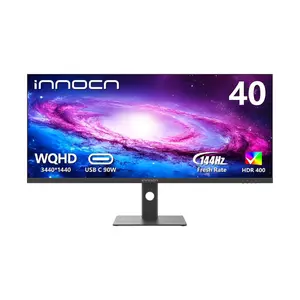
- INNOCN 40C1R
- Gigabyte M34WQ
- Samsung ViewFinity S50GC 34"
- ASUS ProArt PA34VCNV
- Before You Order: Ultrawide Questions Answered
How to Choose an Ultrawide Monitor for Multitasking: Buying Guide
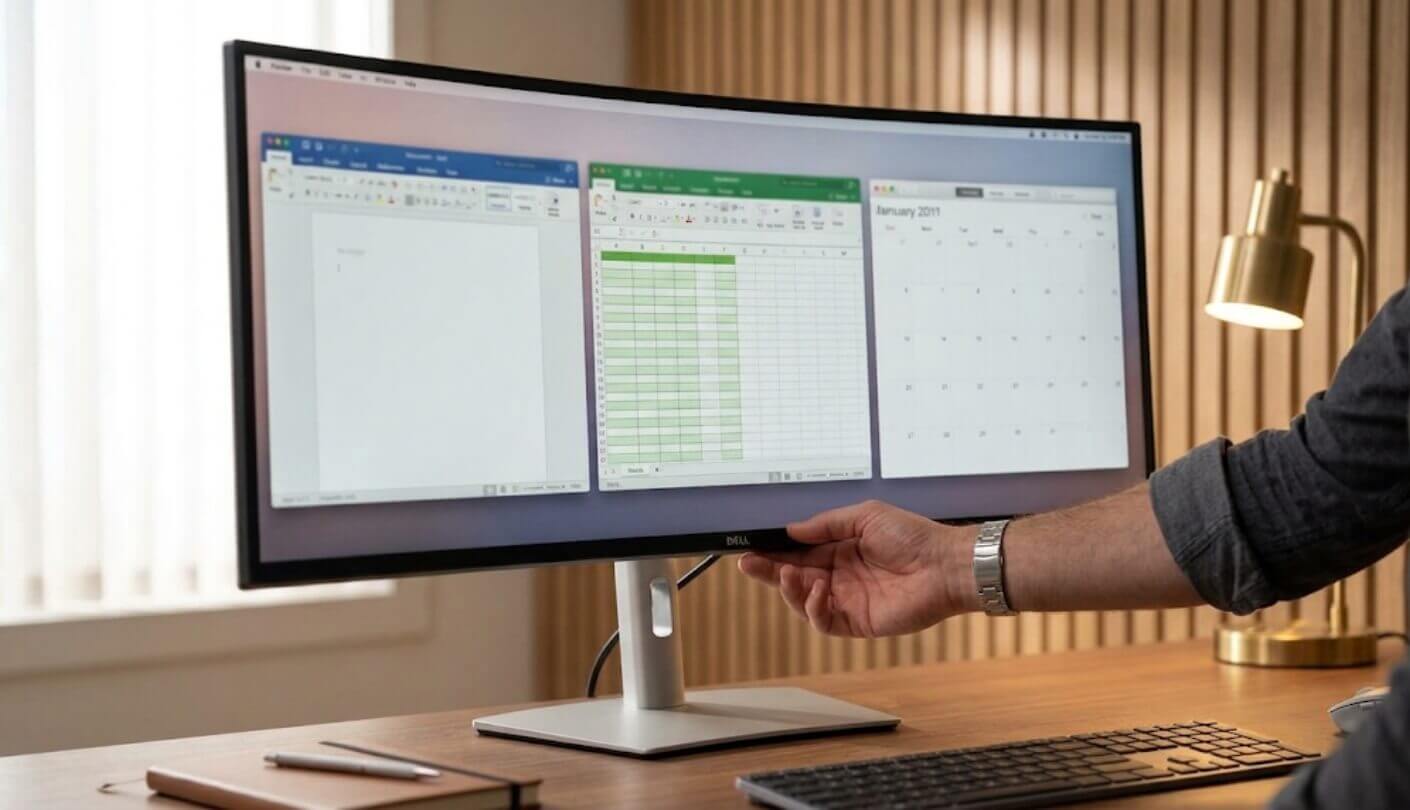
Screen size sells these monitors and pixel count decides whether they help. A 40-inch panel with the same resolution as a 34-inch one gives you bigger windows, and the same number of them. That one idea sits under everything below, starting with the arithmetic almost no product page shows you.
Pixel Density Decides How Many Windows Fit
Run the arithmetic before you fall for a diagonal. A 34-inch panel at 3440x1440 works out near 110 pixels per inch, which is close to a standard 27-inch 1440p screen and means text stays crisp at arm’s length. Stretch that same 3440x1440 across 40 inches and density drops to roughly 94 PPI. The windows grow, the pixels grow with them, and small text starts to look soft. Put 5120x2160 on that same 40-inch panel and you are at about 140 PPI, sharp enough that macOS scaling finally behaves.
A bigger screen at the same resolution shows you larger windows. Only more pixels show you more windows at a readable size.
What this means in practice is simple. A browser window needs roughly 1,700 pixels of width before a site stops cramming its layout, so 3,440 pixels across holds 2 of them and nothing else. At 5,120 you fit 3, or 2 plus a chat panel and a file list. I ran the same 3-app layout on every monitor here, and that single number predicted my experience better than panel type, refresh rate or brand.
Refresh Rate Matters Less Than the Box Suggests
Marketing pushes 144Hz hard, and for spreadsheet work it buys you very little. The real gap between 100Hz and 144Hz on a work machine shows up in mouse movement and scrolling text, and most people stop noticing within an hour. Anything at 100Hz or above already feels smoother than the 60Hz panels most offices still run.
Where refresh rate does earn its place is in the evening, when the work machine becomes a games machine. If that describes your desk, look at which port carries the full rate. Several monitors here run their headline refresh only over DisplayPort and drop to 100Hz or 60Hz over HDMI or USB-C, which catches out anyone planning to drive the screen from a laptop through a single cable.
One Cable or a Nest of Them
Power delivery is the spec that changed my desk most of all. A monitor with 90W or more over USB-C carries video, data, network and laptop charging down a single cable, so arriving at the desk means plugging in once and nothing else. A monitor with 18W carries video and data and leaves your laptop charger where it was. Both are described as having USB-C, and they are different products.
Check the wattage, not the port. USB-C at 18W is a video input with a data channel. USB-C at 96W is a docking station that happens to have a screen attached.
Thunderbolt 4 sits above that with up to 140W and the ability to daisy-chain a second display from the same connection. Ethernet is the quiet companion feature, and 2 of the monitors here include an RJ45 port that hands your laptop a wired connection the moment it docks. I stopped carrying a USB hub the week I moved to a docking monitor, and that alone justified the upgrade for me.
Running Two Computers on One Screen
Plenty of us have a work laptop and a personal desktop under the same desk. A built-in KVM switch lets one keyboard and mouse jump between them at the press of a button, with the video following along. It sounds like a niche feature until you own it, at which point the second keyboard goes in a drawer and never comes out.
Picture by Picture does the other half of that job, splitting the screen between 2 inputs so both machines stay visible at once. On a 21:9 panel each half is roughly the shape of an old 4:3 monitor, which suits a chat window and a terminal better than a video timeline. Dell goes further with internal Multi-Stream Transport, presenting its 40-inch panel to the operating system as 2 separate 2560x2160 displays, so window snapping works the way it does on a real dual setup.
The Desk, the Stand and the Weight
Measure your desk before anything else. A 40-inch ultrawide needs roughly 37 inches of clear width, and a curved model wants a few inches of depth beyond the stand foot. My own desk is 55 inches wide and the 40-inch panel left just enough room for a notebook on one side, which is tighter than the photos suggest.
Height adjustment matters more than curvature on a panel this wide. A screen 2 inches too high turns into neck ache by Thursday.
Stands vary more than they should in this category. Two of the monitors here tilt, swivel and raise, one tilts only, and the difference decides whether you need a VESA arm on day one. Weight matters too, since an 18-pound panel on a cheap arm will sag by the end of the month. I measure twice these days, and I still once ordered a screen that hung an inch past the edge of my desk.
Top 5 Ultrawide Monitors for Multitasking
Sorting this group took 4 measurements: pixels across the width, wattage on the USB-C port, support for a second computer, and how far the stand moves. Panel marketing helped not at all, since every one of these is sold as a productivity display. Discounts here swing hard from week to week, so I judged each screen on what it does and left the sale price out of it.
- 5120x2160 Resolution
- 140W Thunderbolt 4
- 2.5 Gbps Ethernet
- Dual-Display iMST Mode
- IPS Black Contrast
- 40-Inch Working Width
- 90W USB-C Charging
- 144Hz Over DisplayPort
- 95% DCI-P3 Coverage
- Factory Calibration Report
- Hardware KVM Button
- 144Hz IPS Panel
- 110 PPI Sharpness
- Full Ergonomic Stand
- Type-B Upstream Option
- 3000:1 VA Contrast
- Crisp 1440p Text
- PbP And PiP
- Eye Saver Mode
- Borderless Design
- Calman Verified Calibration
- 96W USB-C Docking
- RJ45 Ethernet Port
- DisplayPort Daisy-Chaining
- Three-Year Warranty
Ultrawide Monitor Comparison
Published figures from each maker, with the rows that change a working day placed first:
| Specification | Dell U4025QW | INNOCN 40C1R | Gigabyte M34WQ | Samsung S50GC | ASUS PA34VCNV |
| Size and Shape | 39.7 in, curved | 40 in, flat | 34 in, flat | 34 in, flat | 34.1 in, 3800R curve |
| Resolution | 5120 x 2160 | 3440 x 1440 | 3440 x 1440 | 3440 x 1440 | 3440 x 1440 |
| Pixel Density | About 140 PPI | About 94 PPI | About 110 PPI | About 110 PPI | About 110 PPI |
| Panel and Refresh | IPS Black, 120Hz | ADS (IPS-type), 144Hz | IPS, 144Hz | VA, 100Hz | IPS, 60Hz |
| Contrast and Brightness | 2000:1, 450 nits | 1200:1, 500 nits | 1000:1, 400 nits | 3000:1, 300 nits | 1000:1, 300 nits |
| Color Coverage | 99% DCI-P3, Delta E under 2 | 95% DCI-P3, Delta E under 2 | 117% sRGB | HDR10, 1.07 billion colors | 100% sRGB and Rec.709, Calman Verified |
| USB-C Power | 140W over Thunderbolt 4 | 90W | 18W | None | 96W |
| Ethernet Port | 2.5 Gbps RJ45 | None | None | None | RJ45 |
| KVM Switch | Yes, network KVM | No | Yes, hardware button | No | No |
| Split-Screen Modes | PiP, PbP and iMST dual-display mode | PiP and PbP | PiP and PbP | PiP and PbP | PiP and PbP |
| Stand Adjustments | Tilt, height, swivel | Tilt, height | Tilt, height, swivel | Tilt only | Tilt, height, swivel |
The resolution row carries most of the decision. Four screens here give you 3,440 pixels of width, the Dell gives 5,120, and that gap decides whether a third window fits at a size you can read. USB-C wattage is the second fork in the road, running from a monitor that charges a laptop at full speed to one with no USB at all. Panel type comes last in my thinking, though the Samsung deserves credit for the contrast its VA panel holds in a dark room.
Dell UltraSharp U4025QW Review
Editor’s Choice
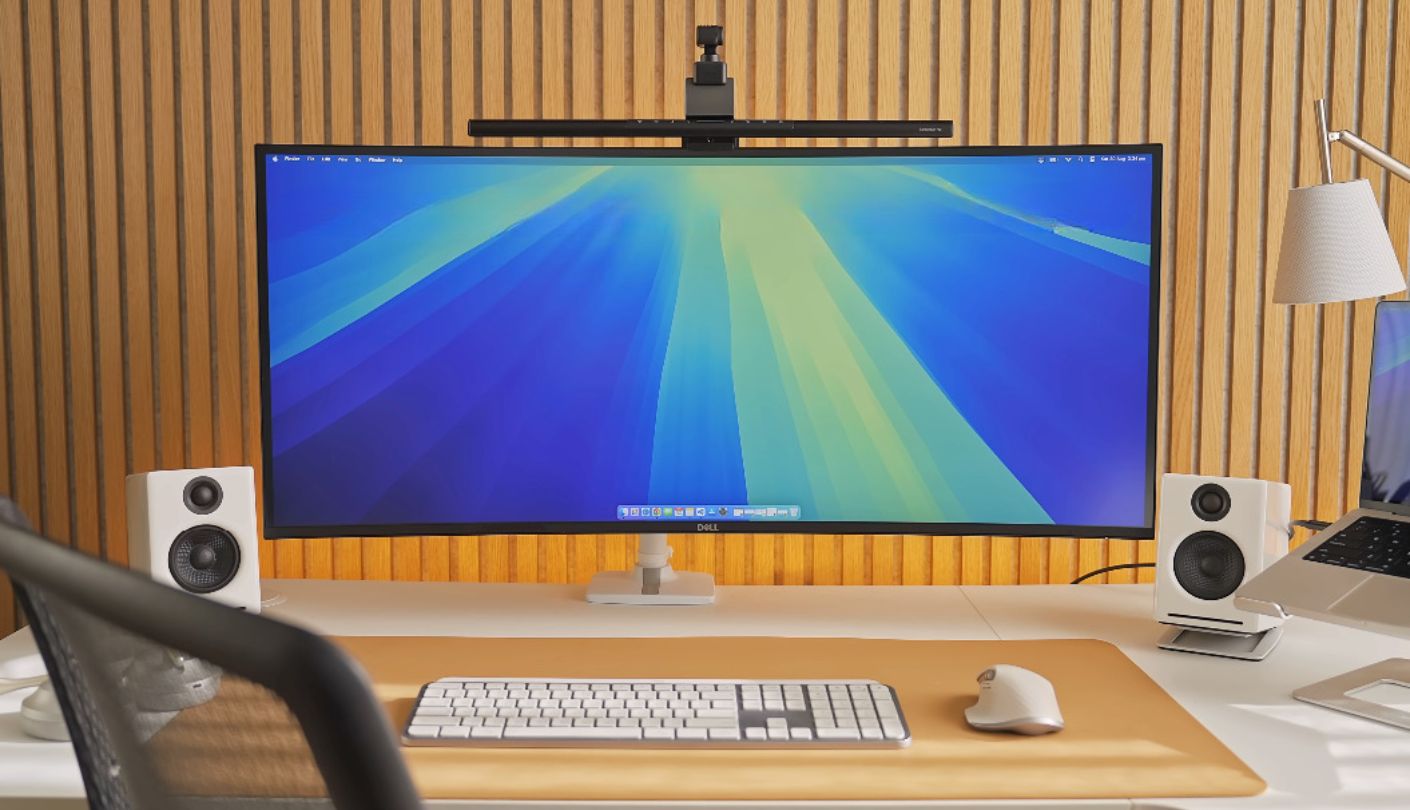
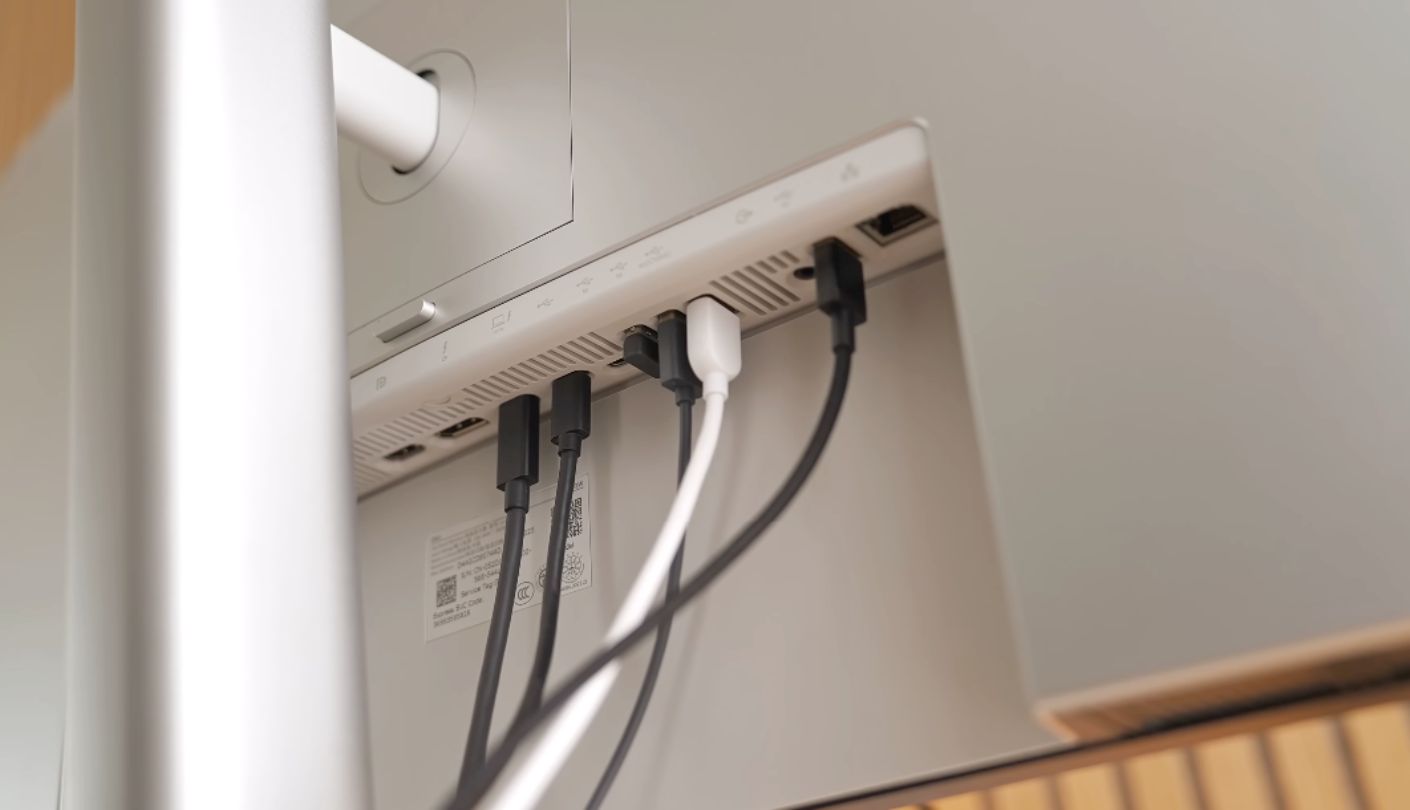
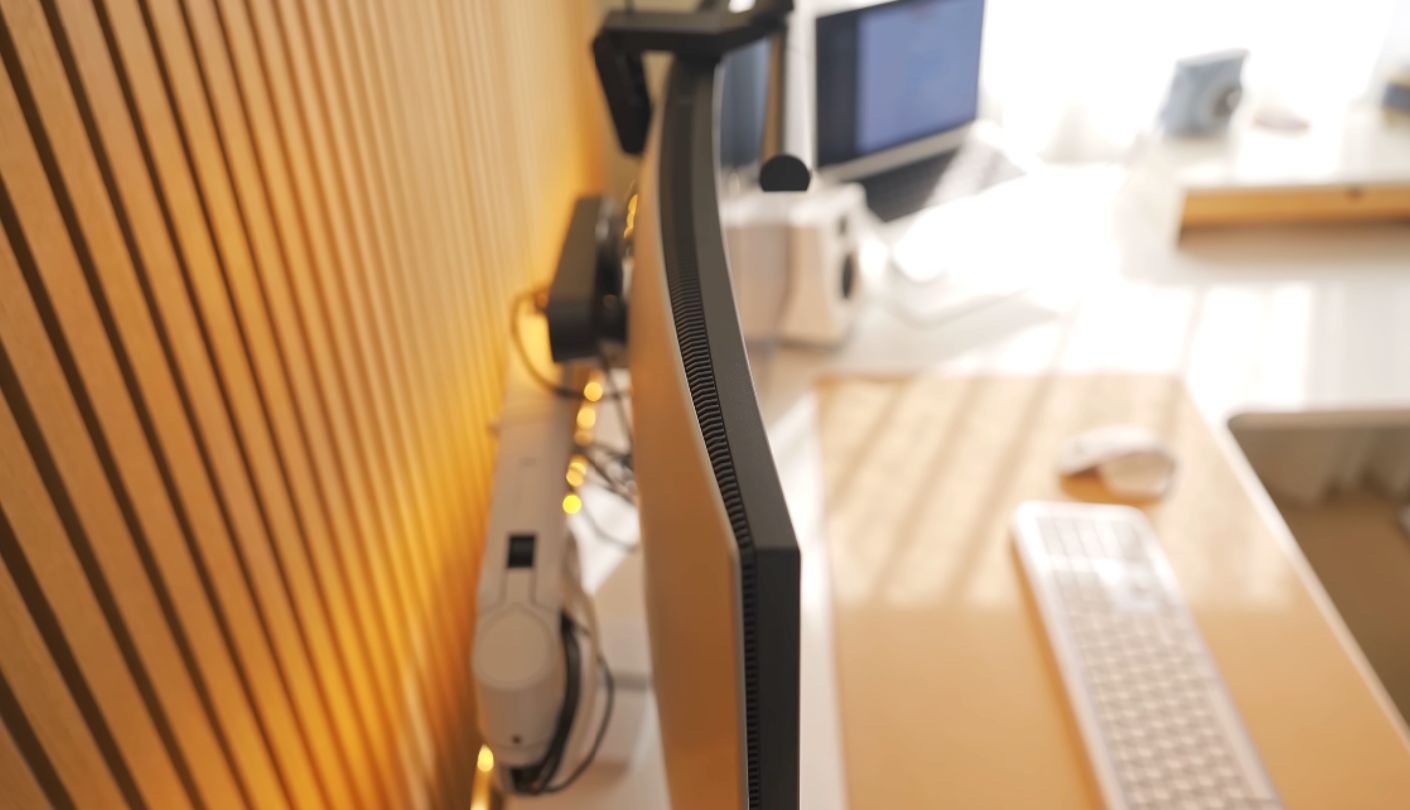
Dell describes this panel as the equivalent of 2 monitors measuring 2560x2160 placed side by side, and after a month I would call that description accurate. The Dell UltraSharp U4025QW puts 5120x2160 across 39.7 curved inches at roughly 140 PPI, so every window keeps the crispness of a good 27-inch screen while 3 of them sit side by side. That combination is rare enough that this monitor has very little competition.
The panel is IPS Black, which raises static contrast to about 2000:1 against the 1000:1 of a normal IPS. In a room with the lights down that shows up as text on a grey background looking properly grey. Brightness is 450 nits, color coverage runs to 99% DCI-P3 with an average Delta E under 2, and the refresh rate is 120Hz, which is unusual at this resolution and makes the whole desktop feel quick.
Connectivity is why it sits at the top. Thunderbolt 4 carries video, data, 2.5 Gbps Ethernet and up to 140W of charging down 1 cable, and a second Thunderbolt port lets you daisy-chain another display. HDMI 2.1 and DisplayPort 1.4 handle desktops, 4 USB-A ports and a separate USB-C upstream handle everything else, and a set of pop-out ports on the underside saves you crawling under the desk for a memory stick.
The multitasking feature I did not expect to use is internal Multi-Stream Transport. Switch it on and the operating system sees 2 displays of 2560x2160 instead of 1 wide one, so maximizing a window fills half the screen instead of the whole thing. Anyone who has fought with window management on a 40-inch panel will understand why that matters. Network KVM handles the second computer, and an ambient light sensor adjusts brightness as the room changes.
The reasons to hesitate are short and specific. HDR performance is ordinary for a DisplayHDR 600 panel, gaming at native resolution asks a lot of any graphics card, and this is comfortably the most expensive screen on the page. For a desk where the screen is the main tool of the trade, I would still buy it again without much thought.
Pros:
- 5120x2160 Resolution
- 140W Thunderbolt 4
- 2.5 Gbps Ethernet
- Dual-Display iMST Mode
- IPS Black Contrast
Cons:
- Ordinary HDR Performance
- Demanding On Graphics Cards
Summary: The only monitor here that fits 3 full columns of work at a readable size. Treat the Thunderbolt dock and the Ethernet port as part of the value, because they replace hardware you would otherwise buy.
INNOCN 40C1R Review
Best Overall
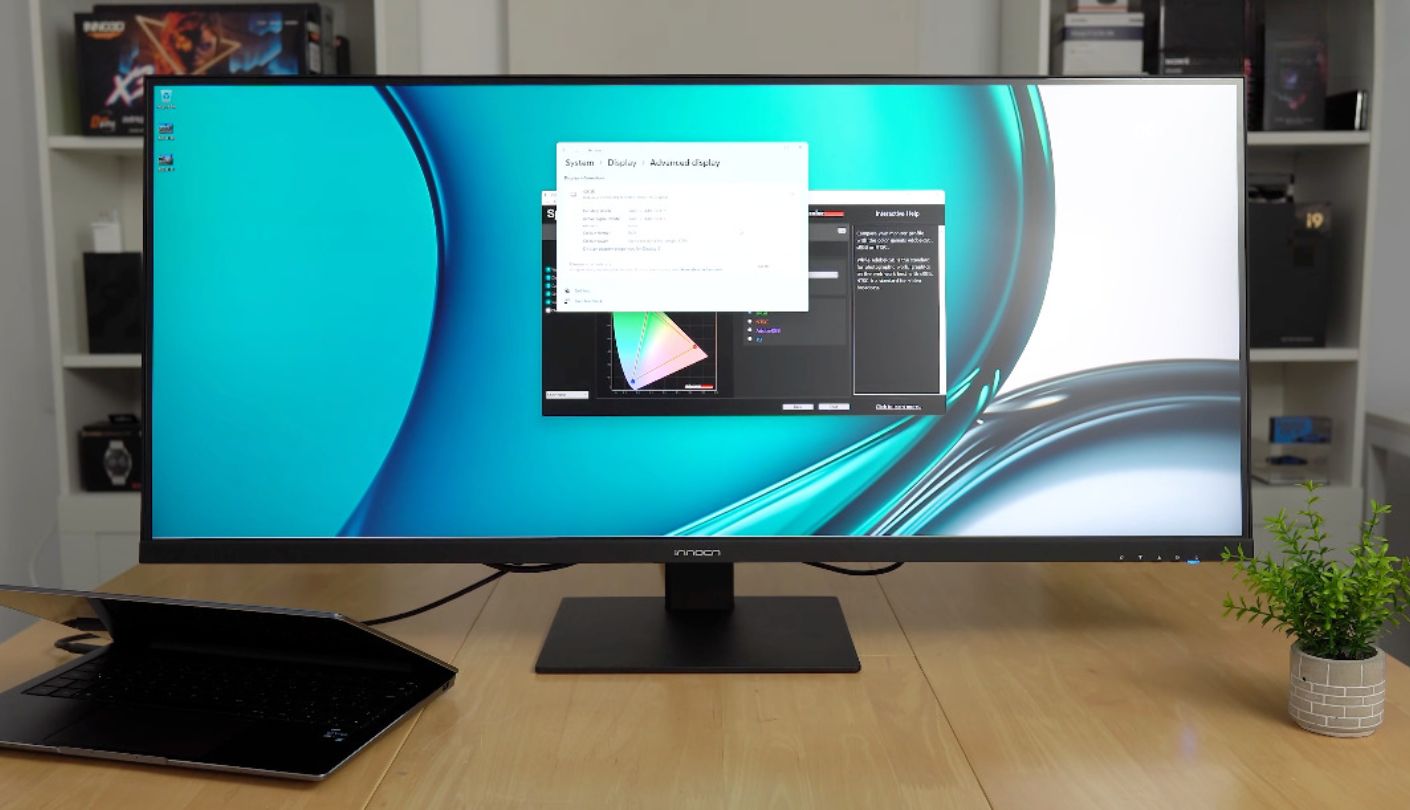
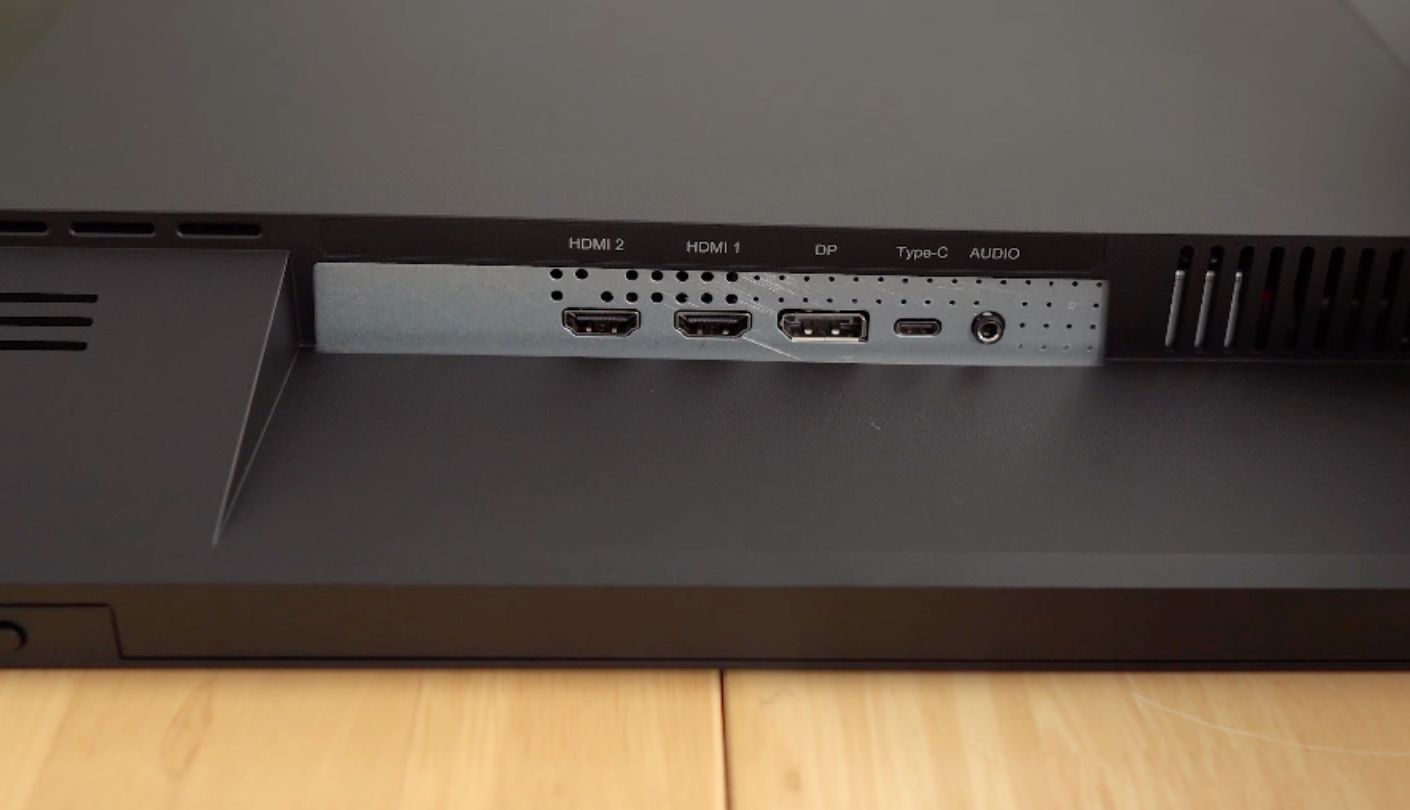
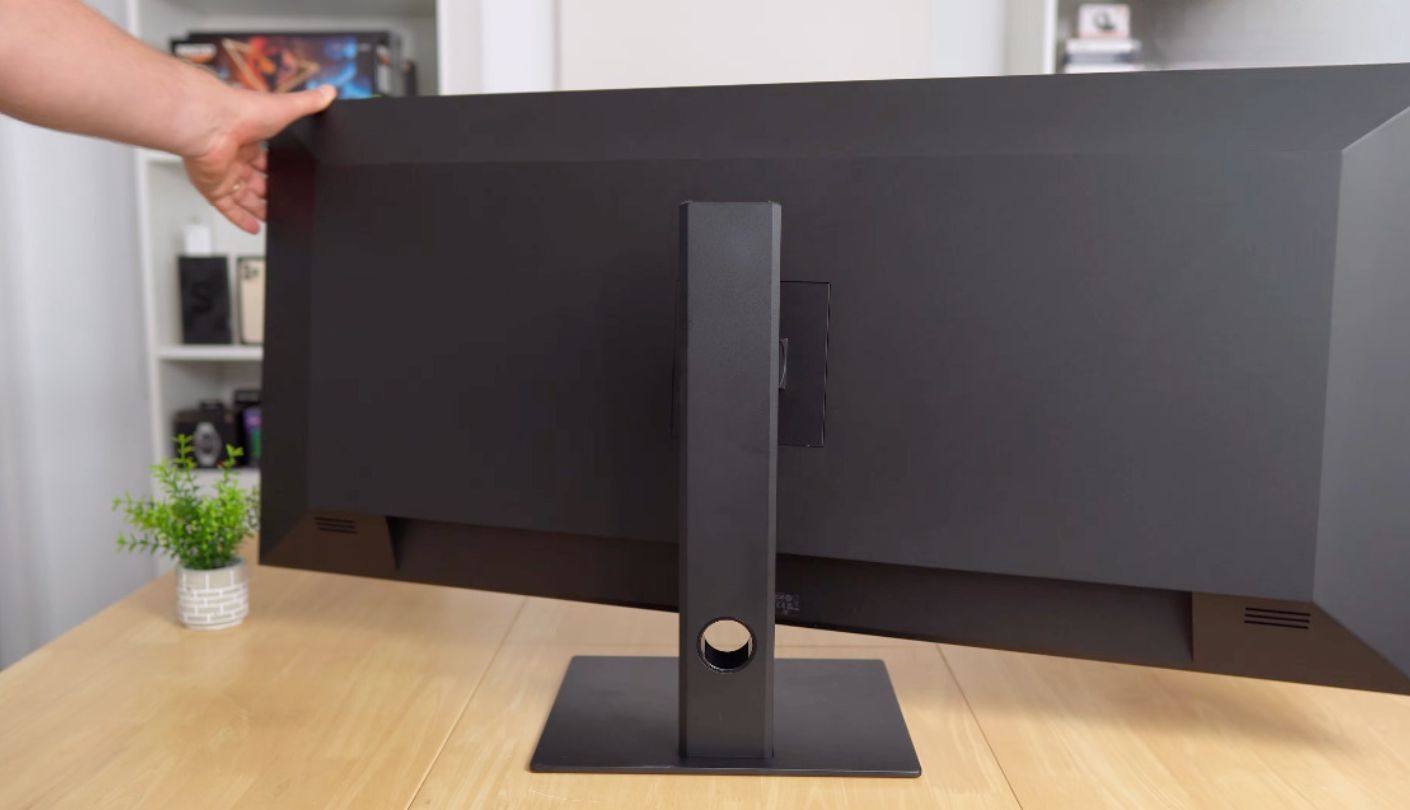
Value in monitors usually means a smaller screen with fewer features. The INNOCN 40C1R takes a different route by giving you a full 40 inches of width, a 144Hz panel and a 90W USB-C port at a price that lands well under the 34-inch monitors from the big brands. Nothing else in this group gives you this much hardware for the money, which is why it takes Best Overall.
The panel is a BOE ADS unit, which behaves like IPS with slightly better contrast at 1200:1. Brightness is rated at 500 nits, color coverage is 95% DCI-P3, and each unit ships with a factory calibration report showing Delta E under 2. Resolution is 3440x1440, so across 40 inches you are at roughly 94 PPI. Windows look generous, text looks a shade softer than on a 34-inch screen, and at the distance most people sit, that reads as comfortable instead of blurry.
That 90W USB-C port is the feature I would highlight to anyone with a laptop. One cable carries the picture and charges the machine, which puts this monitor in the same practical category as models costing twice as much. The catch is worth knowing before you order: USB-C tops out at 60Hz, HDMI reaches 100Hz, and the full 144Hz arrives only over DisplayPort. For office work at 60Hz through a single cable that trade is fine, and for gaming you will want the DisplayPort cable in the box.
Living with it reveals where the money was saved. The on-screen menu is clumsy and the joystick placement takes learning. The stand raises and tilts but does not swivel. There is no KVM switch, so a second computer means reaching for the input button. Reviewers have measured slightly more ghosting than on premium IPS panels, which matters in a shooter and never appears in a spreadsheet.
For a home office, this is the easiest recommendation on the page. It puts more usable desktop in front of you than any 34-inch screen can, it charges a laptop properly, and it leaves room in the budget for the chair you sit in all day. Photo retouchers who need pin-sharp text at close range should spend more. Everyone else can start here and stop looking.
Pros:
- 40-Inch Working Width
- 90W USB-C Charging
- 144Hz Over DisplayPort
- 95% DCI-P3 Coverage
- Factory Calibration Report
Cons:
- 60Hz Over USB-C
- Clumsy On-Screen Menu
Summary: More desktop for the money than anything else here, with a USB-C port that behaves like a dock. The refresh rate you get depends on which cable you plug in, which the listing mentions and most buyers miss.
Gigabyte M34WQ Review
Two Machines
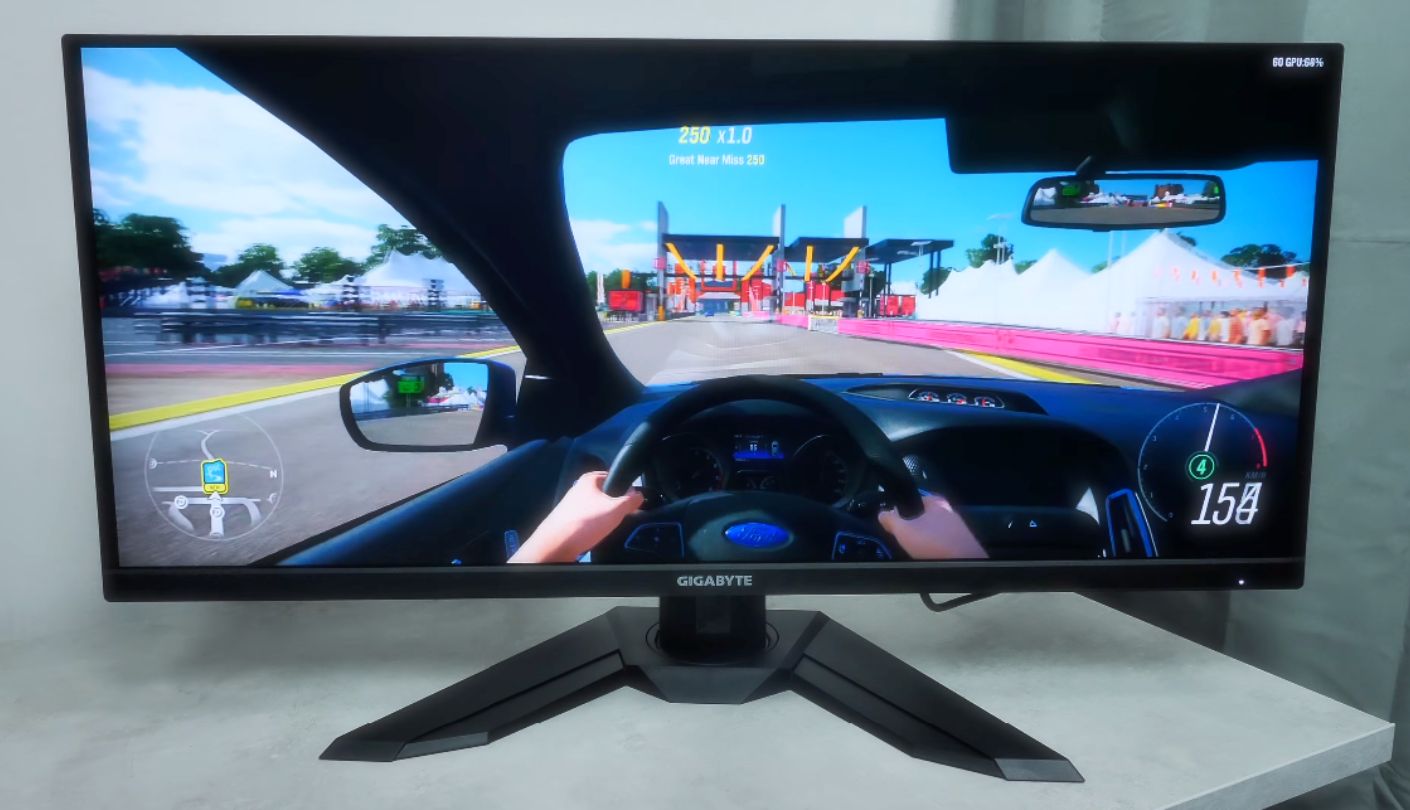
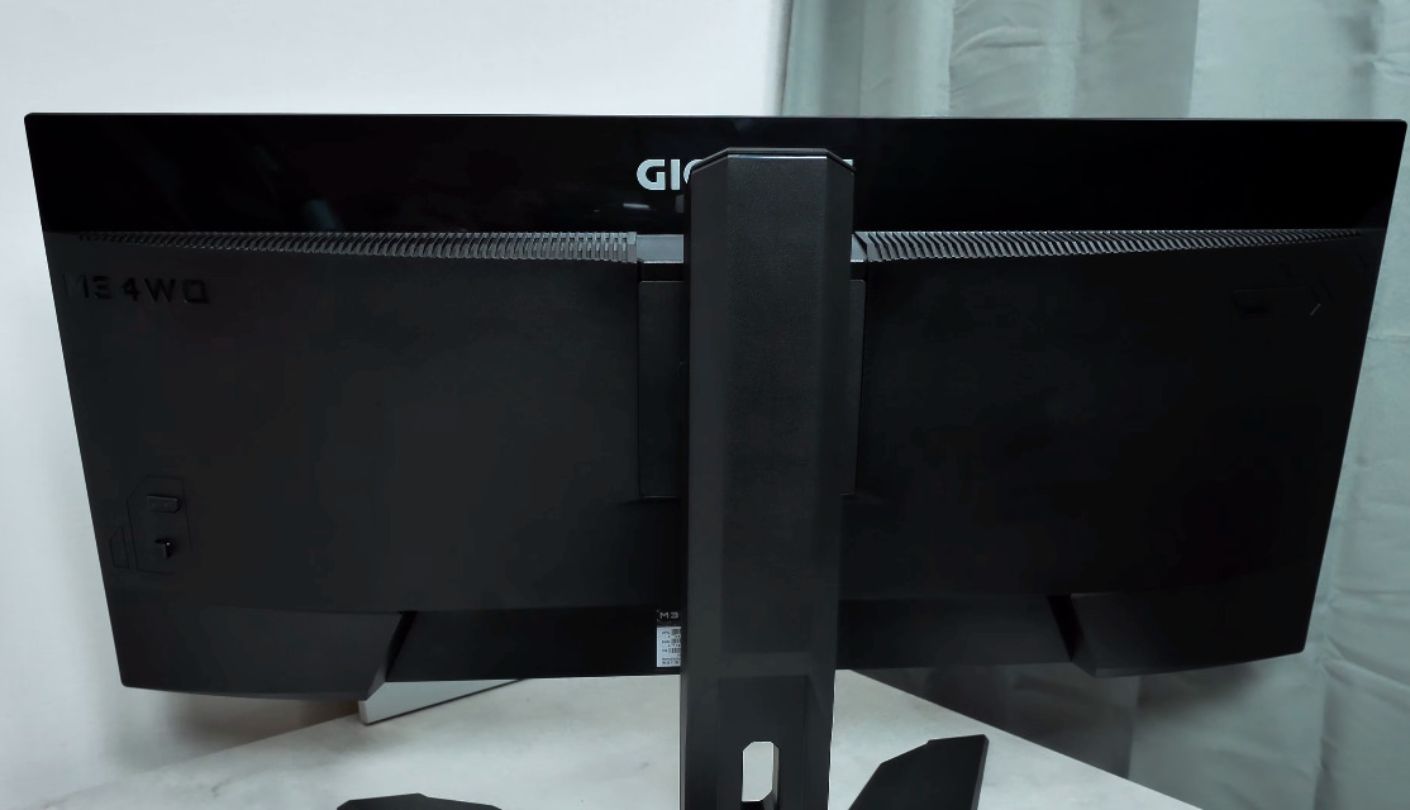
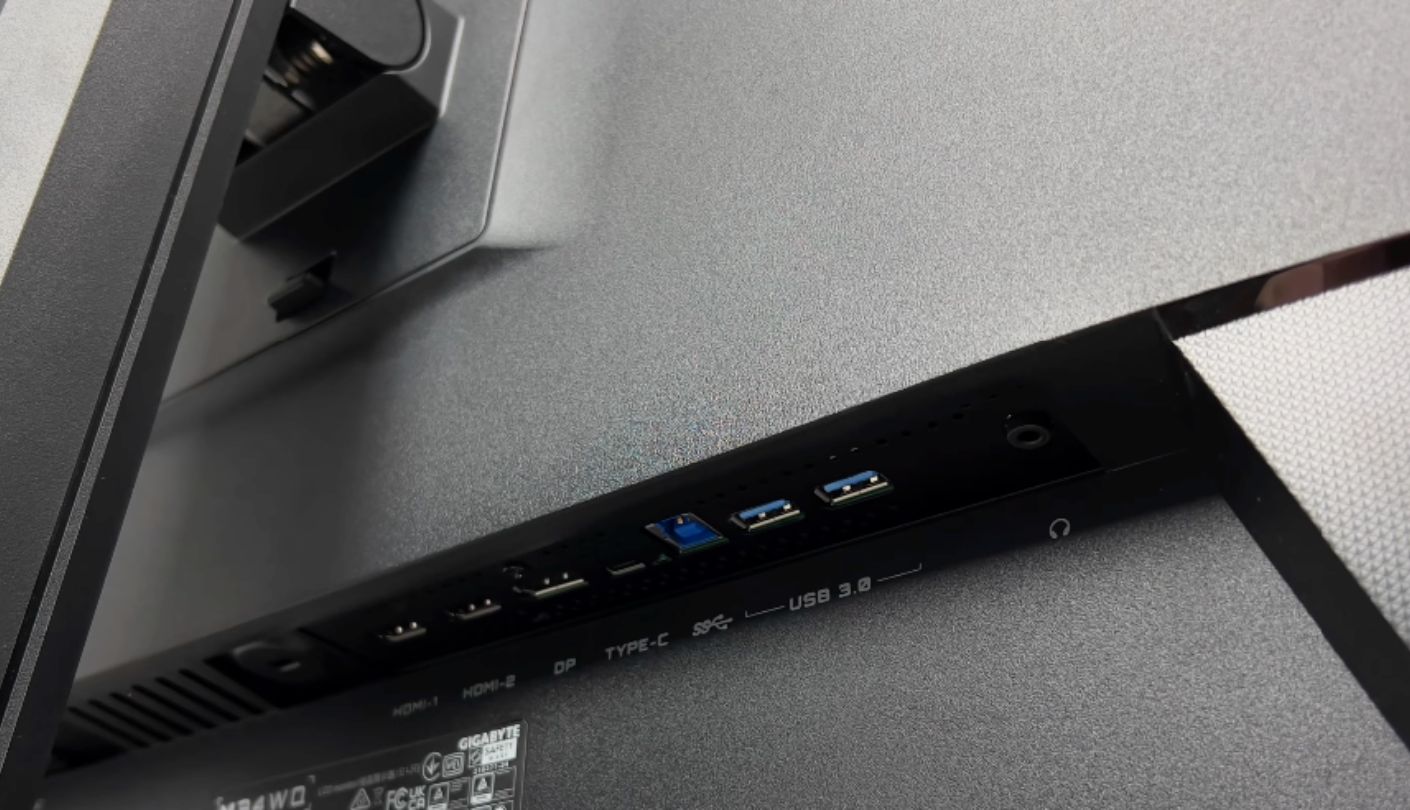
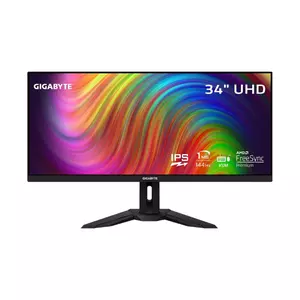
There is a small button on the back of this monitor, next to the joystick, and it does something the other 4 cannot. One press moves the keyboard, the mouse and the picture from your work laptop to your desktop and back. The Gigabyte M34WQ is built around that hardware KVM switch, and for anyone running 2 machines under 1 desk it removes a daily annoyance.
The screen itself is a flat 34-inch IPS panel at 3440x1440 and 144Hz, with 400 nits, 1000:1 contrast, DisplayHDR 400 and 117% sRGB coverage. Pixel density matches a 27-inch 1440p screen, so text stays sharp with scaling left alone. The flat shape divides opinion on a screen this wide, and after a week I stopped noticing it, though people who sit close to their monitors tend to prefer a curve.
Ports cover DisplayPort 1.4 with DSC, 2 HDMI 2.0 inputs, USB-C, a USB Type-B upstream and 2 USB 3.0 ports for your keyboard and mouse. That Type-B connection is what makes the KVM work with a desktop that has no USB-C, and it is the detail that turns the KVM from a bullet point into something you use daily. Two 3W speakers are present and will do for a video call and nothing more.
The limitation to understand is power. USB-C here carries video and data at 18W, enough for a phone or a tablet and nowhere near enough for a laptop, so your charger stays on the desk. Gigabyte aimed this model at desktop gamers who also work, and the port reflects that. Stock has also thinned out since the model has been on sale for several years, so availability varies by seller.
I would put this on the desk of someone who owns a gaming PC and a company laptop and wants 1 keyboard between them. The 144Hz panel earns its keep after hours, the KVM earns its keep during the day, and the flat 34-inch shape fits a normal desk without ceremony.
Pros:
- Hardware KVM Button
- 144Hz IPS Panel
- 110 PPI Sharpness
- Full Ergonomic Stand
- Type-B Upstream Option
Cons:
- 18W USB-C Only
- Patchy Stock Availability
Summary: The pick for a desk with 2 computers on it, thanks to a KVM switch that works with older desktops as well as USB-C laptops. Laptop owners hoping for single-cable charging should look at the INNOCN or the ASUS.
Samsung ViewFinity S50GC 34" Review
Budget Pick
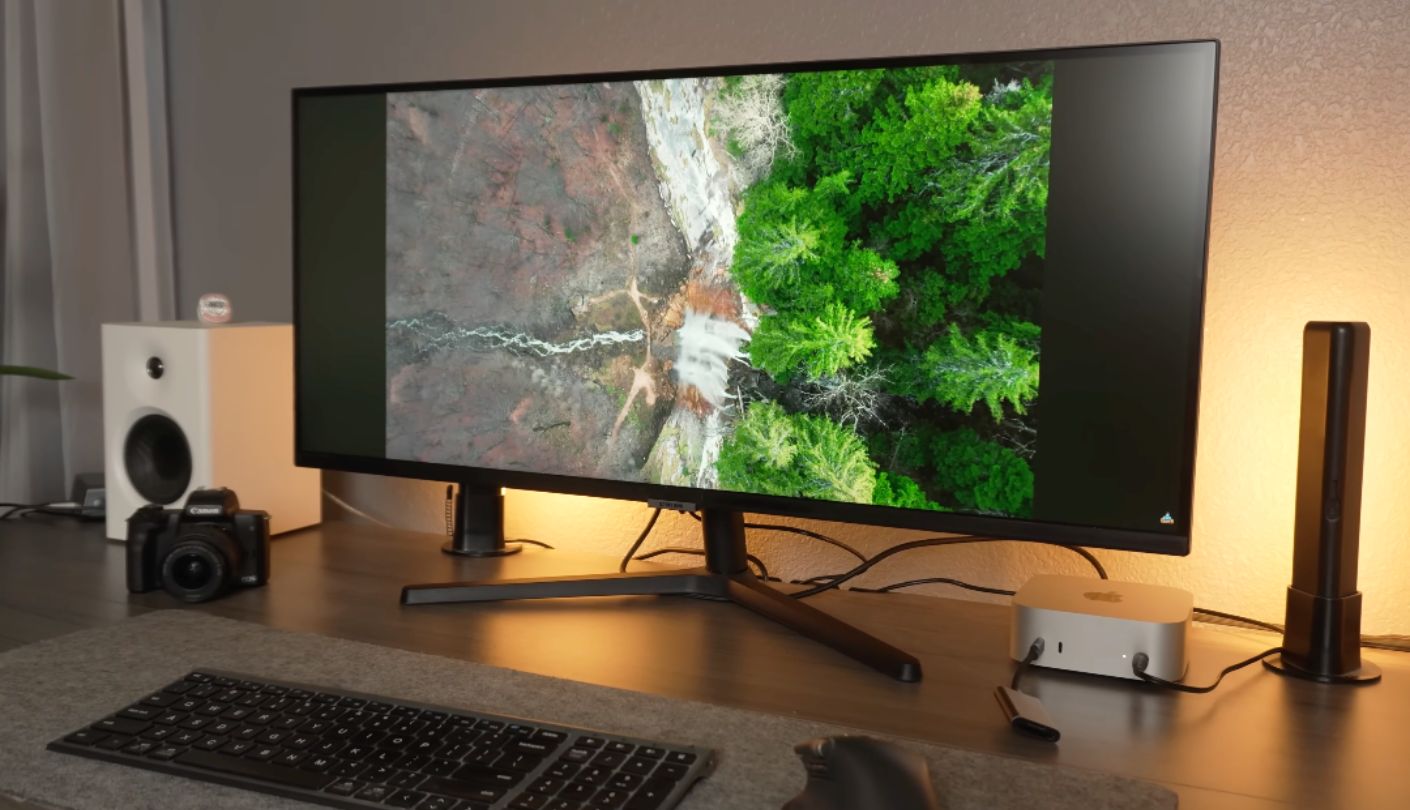
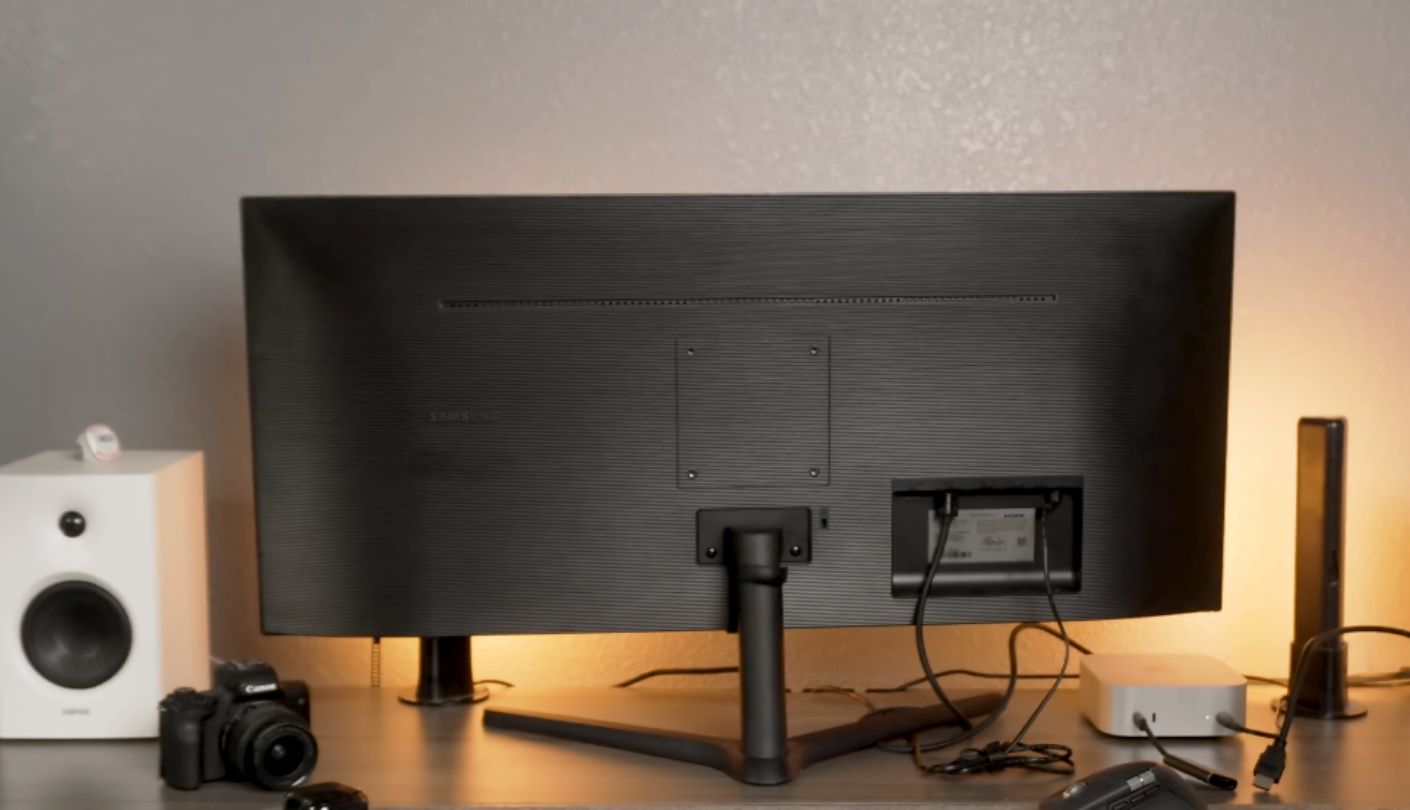
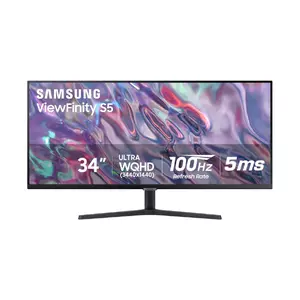
Most ultrawides in this price bracket use IPS panels with contrast around 1000:1, which is why dark rooms make them look washed out. Samsung went with VA here, and the result is 3000:1 static contrast, the highest figure in this group by a wide margin. Watching anything dark on the Samsung ViewFinity S50GC after sunset makes that number obvious.
The rest of the specification is deliberately modest. It is a flat 34-inch panel at 3440x1440 and 100Hz, with 5 ms response, 300 nits, HDR10 support and AMD FreeSync. Text is as crisp as on the other 34-inch screens here, and the borderless design keeps the frame out of your eyeline.
Multitasking tools are present in the menu. Picture by Picture splits the screen between 2 inputs at native resolution, Picture in Picture drops one source into a corner, and there are 2 HDMI ports plus DisplayPort to feed them. Samsung’s eye care package is here too, with Eye Saver Mode warming the picture for evening work and flicker-free backlighting, and I left both switched on for the whole test.
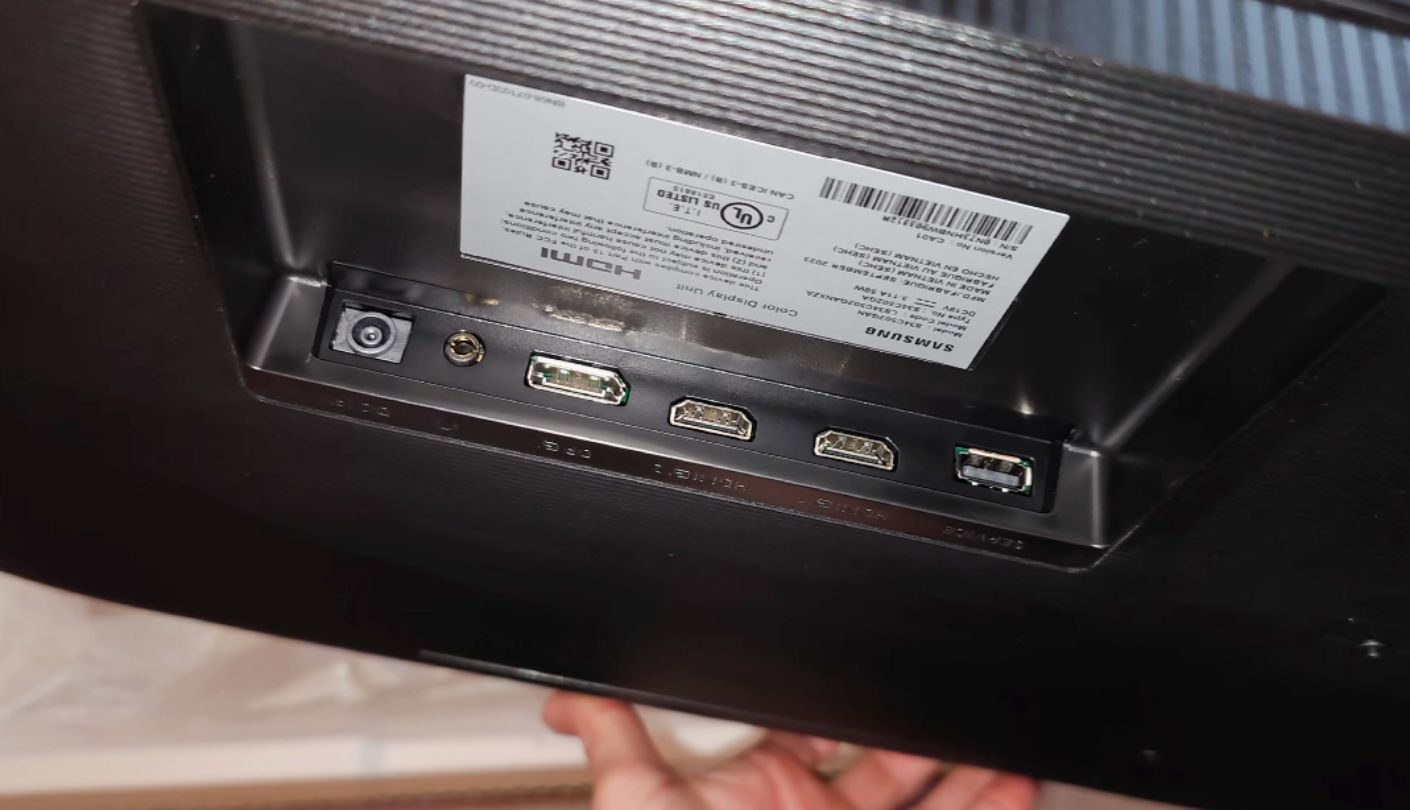
Here is where the savings show. There is no USB hub, no USB-C, no Ethernet and no KVM switch, so every device needs its own cable to its own machine. The stand tilts and does nothing else, meaning a VESA arm is a realistic extra expense if your desk sits low. Viewing angles are narrower than IPS, which a single user will never notice and 2 people sharing the screen certainly will.
The case for it is about fit, not victory. A first ultrawide, a home study, a second desk that has to work without impressing anybody: this covers all 3 without drama. Line it up against the docking monitors above and it falls behind on every connectivity row, which is exactly what its price reflects.
Pros:
- 3000:1 VA Contrast
- Crisp 1440p Text
- PbP And PiP
- Eye Saver Mode
- Borderless Design
Cons:
- Tilt-Only Stand
- No USB Ports
Summary: The cheapest sensible way onto a 21:9 desktop, with contrast that beats every IPS panel here. Budget for a monitor arm, because the stand does the bare minimum.
ASUS ProArt PA34VCNV Review
Color Work
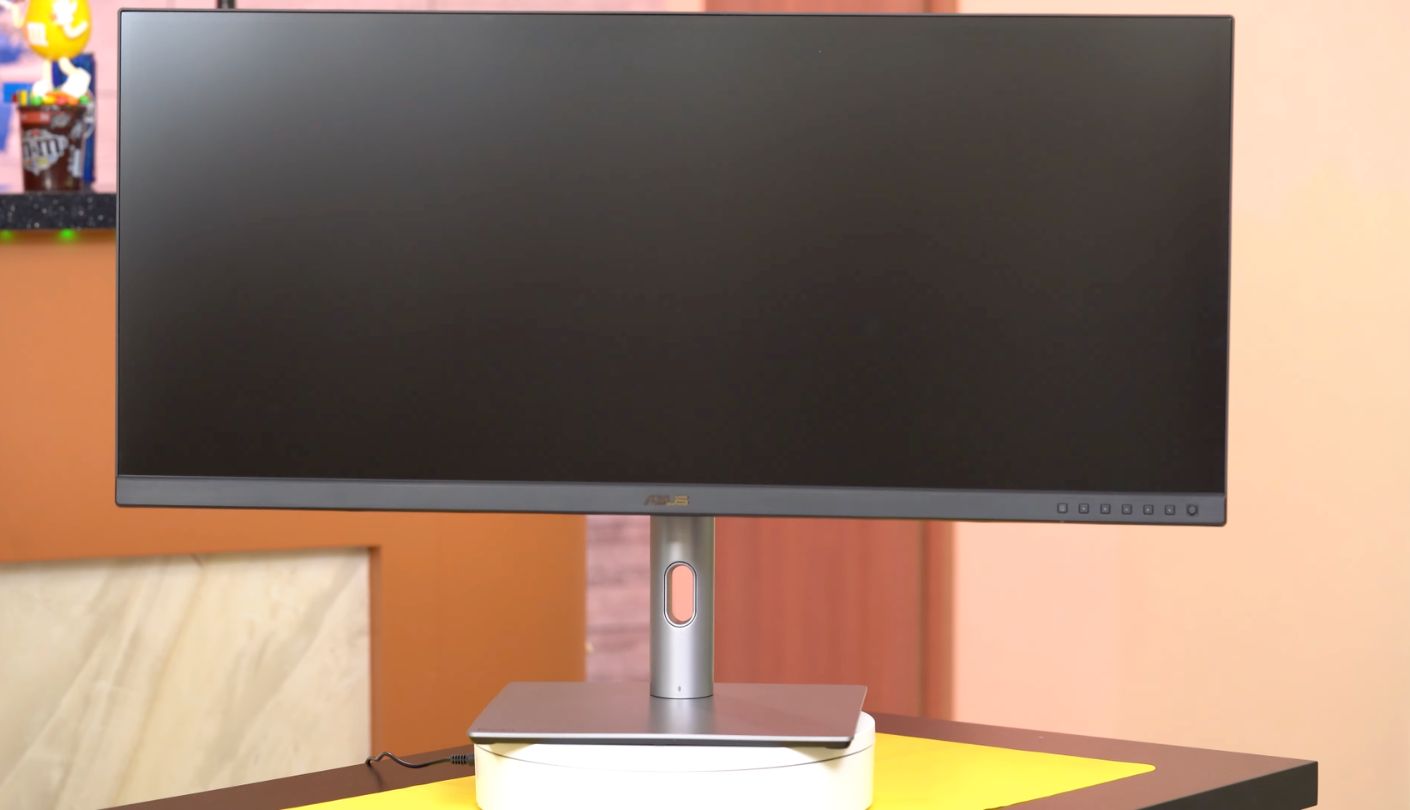
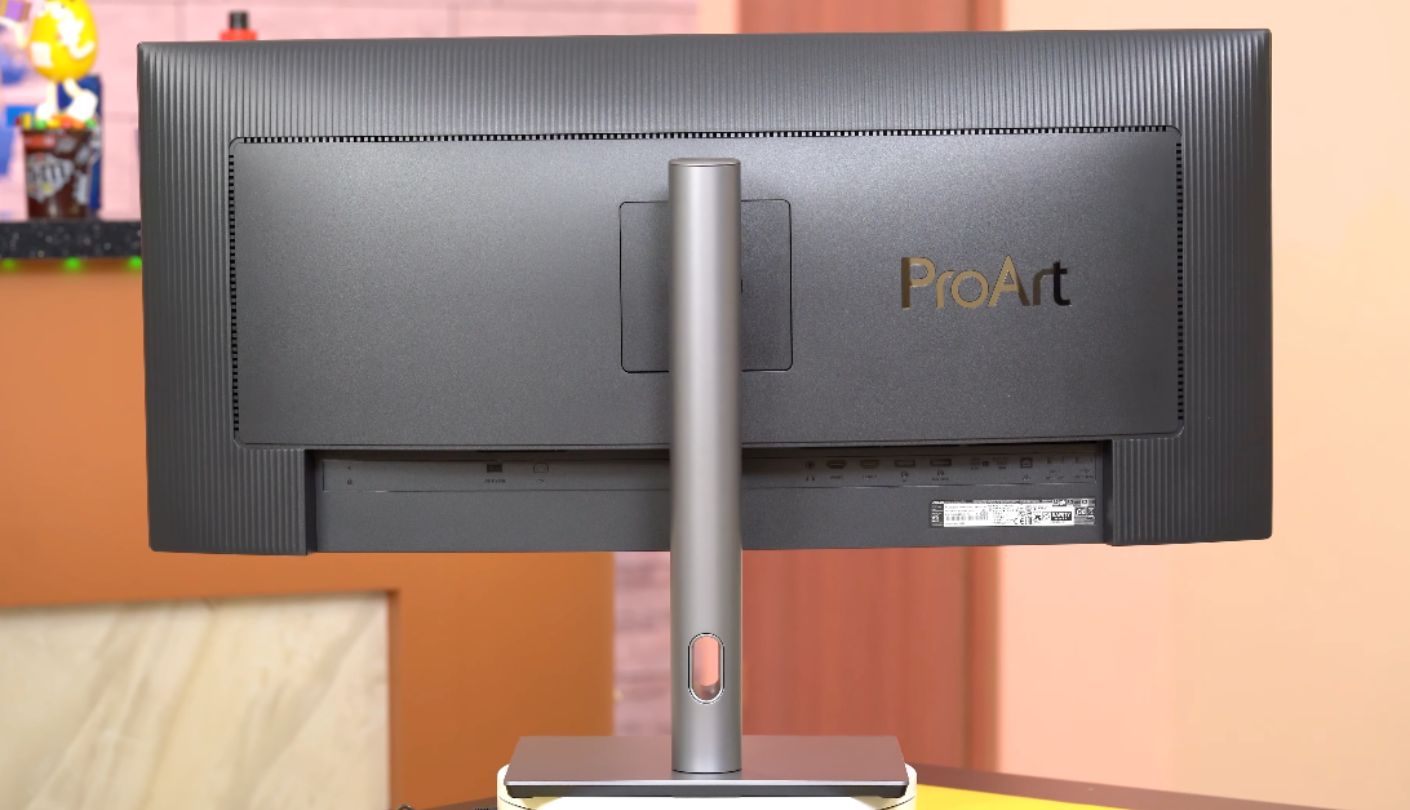
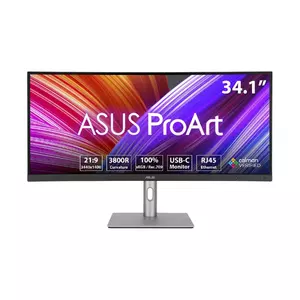
Calman Verified, Delta E under 2, 100% sRGB and 100% Rec.709, factory calibrated with a 3-scale process, DICOM compliant for medical grayscale. The ASUS ProArt PA34VCNV arrives with a specification aimed at people whose work gets judged on color, and that focus explains both its strengths and its one glaring omission.
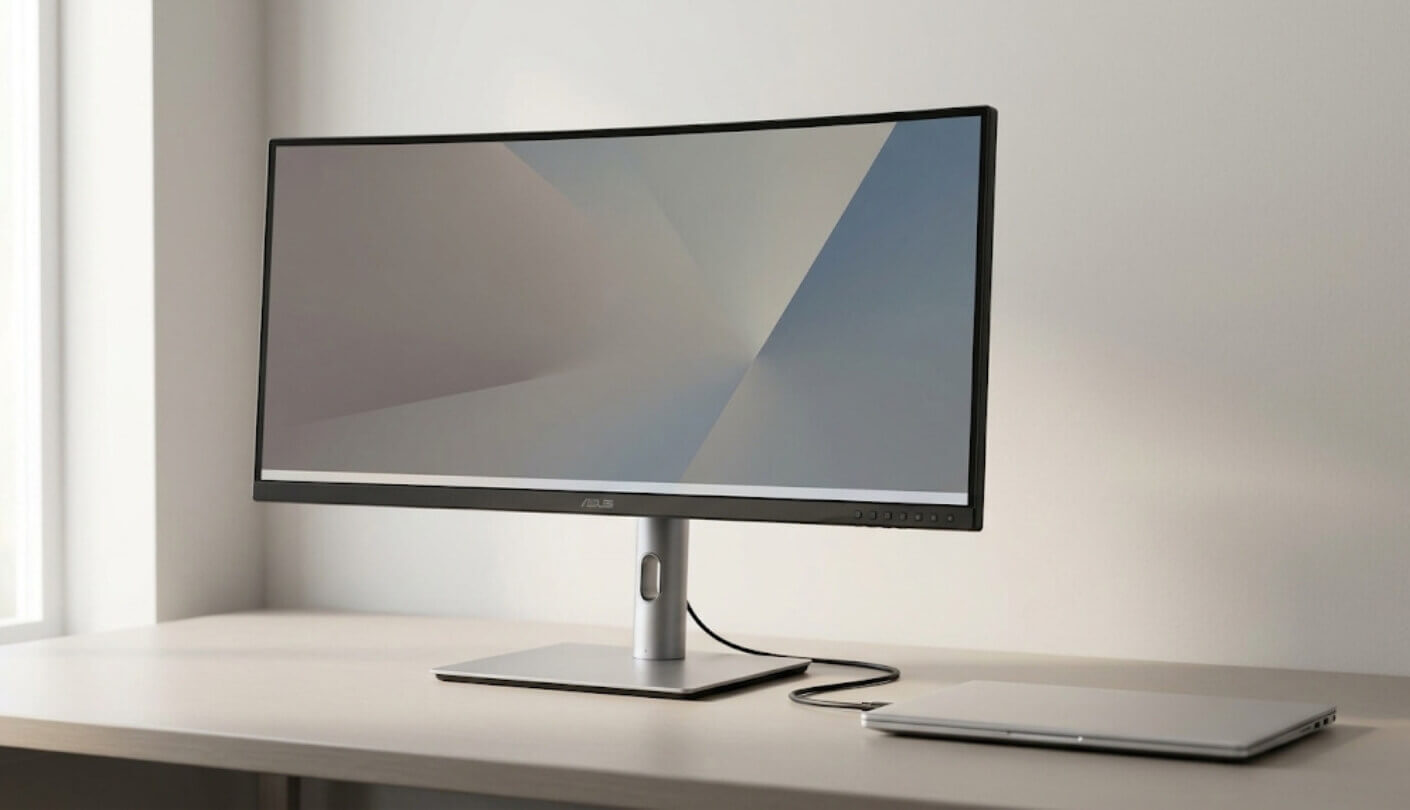
Start with what the panel does. It is a 34.1-inch IPS at 3440x1440 with a gentle 3800R curve, chosen so every point on the screen sits about the same distance from your eyes. Brightness is 300 nits and contrast is a standard 1000:1, which is ordinary, though color consistency across the panel is where ProArt models earn their reputation. Ten-bit color gives over a billion shades, and the preset list covers sRGB, Rec.709, DCI-P3 and DICOM.
Now the omission. Refresh rate tops out at 60Hz. On a 2026 spec sheet that looks antique, and in a video editing timeline or a photo library it matters not at all. If your evenings involve games, buy something else. If your evenings involve grading footage or retouching images, 60Hz will never once interrupt you.
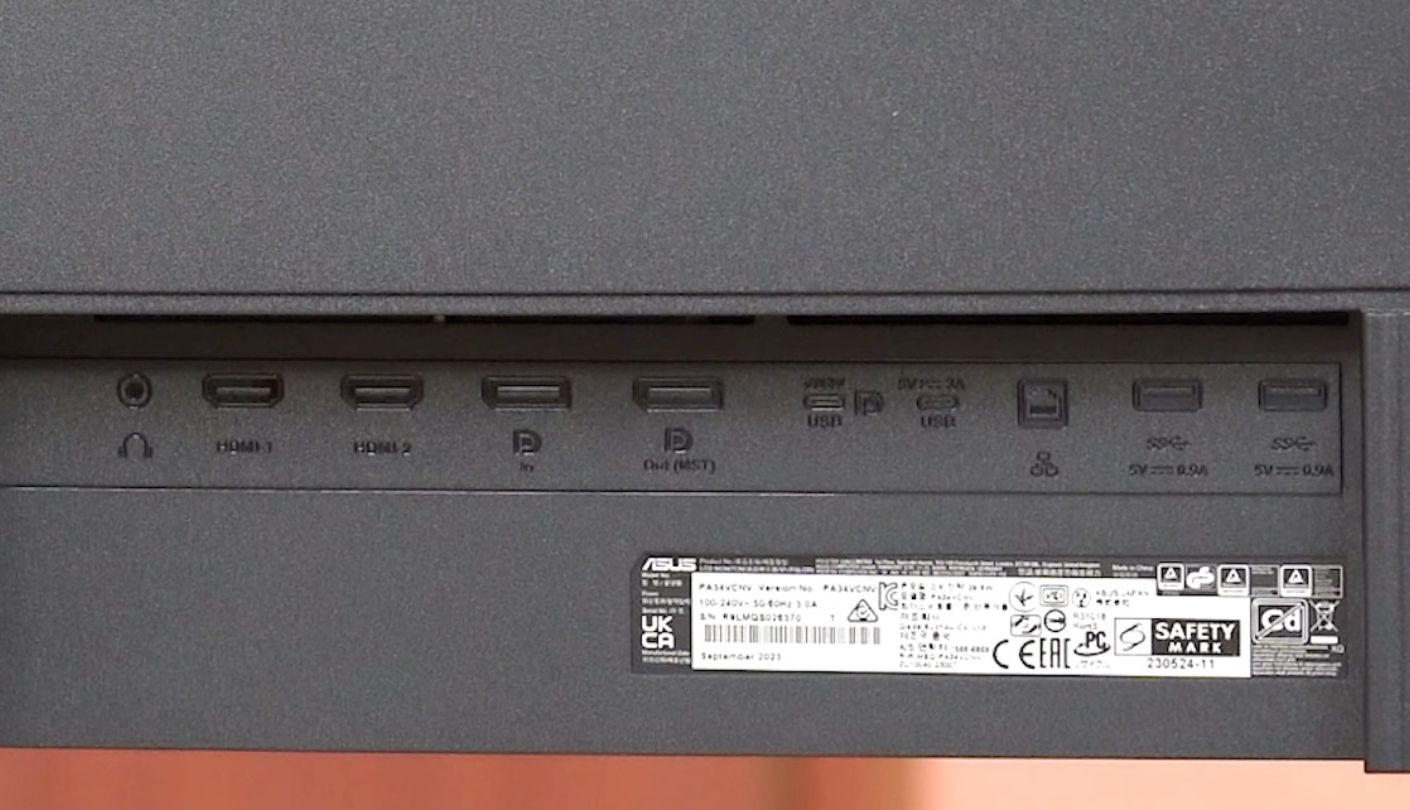
Connectivity is the second reason to consider it. USB-C docking carries 96W of power, an RJ45 port gives a wired network, a USB hub sits on the back, and DisplayPort daisy-chaining lets you run a second monitor from the same machine. Add a stand with tilt, swivel and height adjustment and a 3-year warranty, and this behaves like a professional tool and not a consumer screen.
The buyer profile is narrow and well served. A freelance editor or photographer who needs reliable color, a clean single-cable desk and a wired network connection will find the package coherent. Everyone chasing refresh rate or contrast should look at the other 4, because no amount of calibration compensates for a 60Hz ceiling.
Pros:
- Calman Verified Calibration
- 96W USB-C Docking
- RJ45 Ethernet Port
- DisplayPort Daisy-Chaining
- Three-Year Warranty
Cons:
- 60Hz Refresh Ceiling
- Standard 1000:1 Contrast
Summary: Built for color-critical work, and aimed at people who bill for it. The 60Hz panel rules it out for gaming and bothers nobody who bought it for editing.
Before You Order: Ultrawide Questions Answered
Is one ultrawide better than two separate monitors?
For most desks, yes. You lose the bezel down the middle, the color matching problem and the habit of losing windows between screens. You also lose the ability to turn one panel vertical for code or documents, which some people rely on. My own compromise after years of both is an ultrawide as the main screen with a small vertical monitor beside it for chat and logs.
How much desk width do I need?
A 34-inch ultrawide occupies roughly 32 inches of width, a 40-inch model closer to 37. Add a few inches for the stand foot and a few more for a curve, then measure the desk instead of trusting the number in your head. A depth of 30 inches makes a 40-inch screen comfortable, while 24 inches puts it closer to your face than most people enjoy.
Will text look too small at this resolution?
That depends entirely on pixel density. At roughly 110 PPI on a 34-inch 3440x1440 panel, Windows at 100% scaling looks the way a 27-inch 1440p monitor does, and most people need no scaling at all. On a 40-inch panel with the same resolution, everything grows by about 17%, which many find comfortable. On the 5K2K Dell at 140 PPI you will want scaling set to 125% or 150%.
Do ultrawides work well for spreadsheets?
Spreadsheets are the use case these screens were made for. A 3,440-pixel width shows getting on for twice the columns of a standard 1080p monitor without scrolling, and 5,120 pixels adds another half again while leaving room for a browser beside it. The limitation is vertical, since 1440 pixels of height shows fewer rows than a 27-inch 4K panel would. Anyone working mostly downward through long sheets should think about that trade.
Curved or flat on a 21:9 screen?
Curved helps more as the screen gets wider and as you sit closer. On a 34-inch panel it is a preference, and plenty of people work happily on flat ones. On a 40-inch panel a curve keeps the far edges from feeling distant, which is why the Dell here is curved and the flat 40-inch INNOCN asks you to turn your head a little more. Photographers who need straight reference lines tend to choose flat.
Do these monitors work properly with a MacBook?
Thunderbolt and high-wattage USB-C models do, and the experience is excellent, since one cable handles video, charging and network. The wrinkle is macOS scaling, which historically looks best around 110 PPI or above 200 PPI. The 5120x2160 Dell falls in a comfortable place at 140 PPI, and the 40-inch 3440x1440 panel at 94 PPI is the one I would try before committing if you are used to a Retina screen.
Is 144Hz worth paying for on a work monitor?
It earns the money only if the same machine plays games in the evening. For documents, code and video calls the jump from 60Hz to 100Hz is the one your eyes register, and each step above that returns less. I would prioritize resolution, USB-C wattage and stand quality first, then treat refresh rate as a bonus.
Which cable should I use for the full resolution and refresh rate?
Check the monitor manual, because ports differ in what they carry. DisplayPort usually offers the highest bandwidth, HDMI varies by version, and USB-C often runs at a lower refresh rate than the other 2 unless the monitor supports Thunderbolt or DisplayPort Alt Mode at full bandwidth. Use the cable that came in the box for the first setup, then upgrade deliberately if you need more.
Two Columns or Three: That Is the Whole Decision
The decision comes down to pixels across the width, wattage at the USB-C port, and how many computers live under your desk. In my case the answers pointed at the Dell, since 5,120 pixels changed how much I could see at once and the Thunderbolt connection retired a hub, an Ethernet adapter and a charger on the same afternoon.
For most people, though, the INNOCN is the smarter purchase, and I say that as someone who spent weeks with the expensive one on the desk. It gives you the width where it counts, it charges a laptop, and it leaves money in the budget for the chair and the desk that make the screen usable. The Gigabyte suits a 2-computer desk, the Samsung suits a tight budget or a dark room, and the ASUS suits work that gets judged on color. Measure your desk first, then match the port to your laptop, and the rest of the decision makes itself.

Jeb here, your go-to geek for everything from video projection to the latest tech trends. As an avid outdoorsman, I enjoy using monoculars and binoculars for hunting, traveling, and birdwatching. Join me in exploring the cool, quirky side of technology!


